Day10- Advance Git & GitHub for DevOps Engineers.

Introduction:
Git has revolutionized the way developers collaborate and manage code changes in software projects. However, mastering Git requires more than just basic commands for committing and pushing code. Understanding advanced concepts like branching, reverting, resetting, rebasing, and merging is essential for efficient collaboration and code management. In this blog, we'll delve into these concepts, equipping you with practical skills to navigate complex Git workflows with confidence.
Git Branching:
Branching is a cornerstone of Git workflows, allowing developers to work on multiple features or fixes simultaneously without affecting the main codebase. Here's how to harness the power of branching:
Creating a Branch: Use
git branch <branch_name>to create a new branch.Switching Branches: Use
git checkout <branch_name>to switch between branches.Merging Branches: Use
git merge <branch_name>to merge changes from one branch into another.Branching Strategies: Explore popular strategies like Git Flow or GitHub Flow to streamline your development process.
Git Revert and Reset:
Both
git revertandgit resetundo changes, but with key difference.Sometimes, you make changes to your code that you later realize were a mistake, or maybe they broke something else. Reverting allows you to undo those changes and return to a previous state of your code. It's like hitting the undo button on your changes.
git revert: Creates a new commit that effectively reverses the previous commit, leaving the original history intact. It's a safe and recommended option.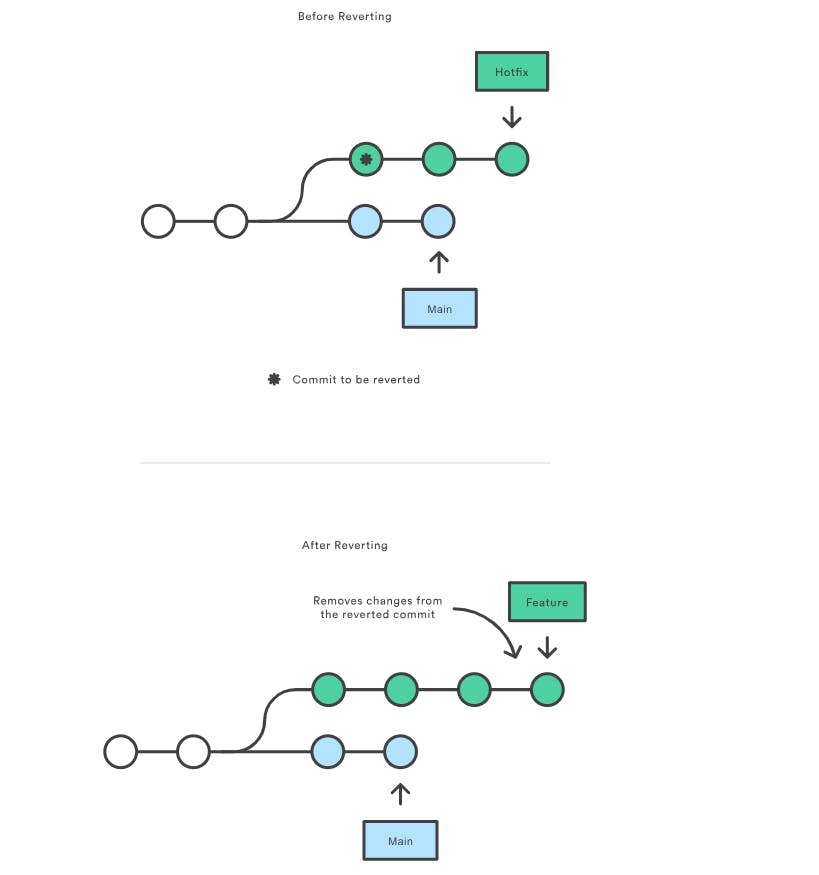
git reset: Rewrites history by moving the HEAD pointer to a specific commit, essentially deleting the following commits. Use with caution! This can be problematic if others have already pulled your code with the "deleted" commits.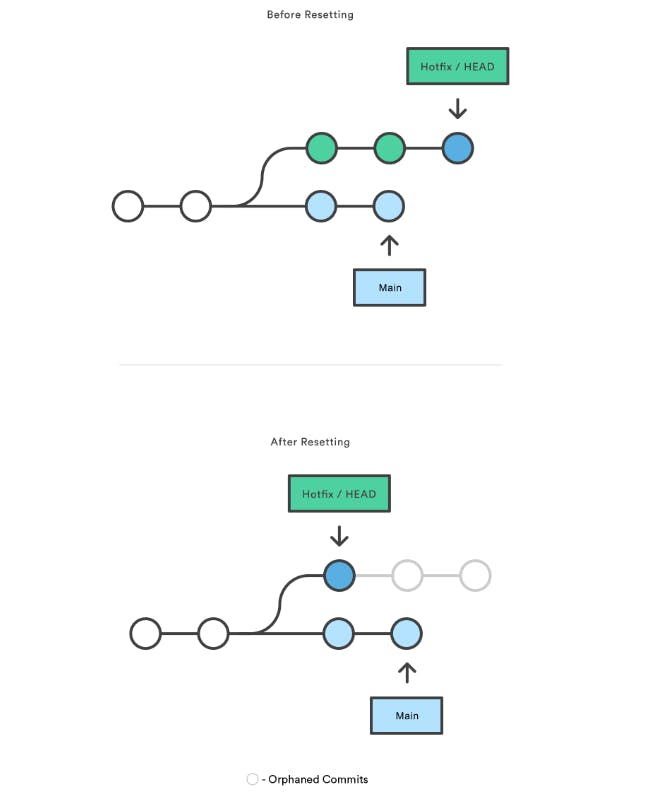
Remember:
git resetis powerful, but use it thoughtfully as it can cause confusion and collaboration issues if not used carefully.Git Rebase and Merge:
Both
git rebaseandgit mergemethods are used to integrate code from one branch into another, but with different approaches:git rebase: Re-applies the commits from one branch (usually a feature branch) on top of another branch (usually "master"). It rewrites history, creating a linear history as if the commits were originally made on the target branch.git merge: Creates a new "merge commit" that reflects the integration of two branches. It maintains the original history of both branches, leading to a more complex history with additional merge commits.
When to use which:
Use
git rebasewhen:You want a clean, linear history for your main branch.
You are working on a branch alone or with a small, closely coordinated team.
Use
git mergewhen:You want to maintain a clear history of changes from each branch.
You are working in a larger team where others might have already pulled your code, and rewriting history with
git rebasecould cause issues.
Remember: While git rebase offers a cleaner history, use it with caution and ensure others haven't already pulled your code before rebasing, as it can lead to conflicts and confusion.
Task 1:

1. Create a new branch and add content:
Create a new branch named "dev":
git checkout -b dev:
Create a file named "version01.txt" inside the "Devops/Git/" directory with the content: "This is the first feature of our application."


Stage and commit the changes:
git add version01.txt,git commit -m "Added new feature"


Push your changes to the remote "dev" branch:
git push origin dev

2. Add new commit in
devbranch after adding below mentioned content inDevops/Git/version01.txt: While writing the file make sure you write these lines.1st line>> This is the bug fix in development branch.

Commit this with message “Added feature2 in development branch.”

2nd line>> This is gadbad code

Commit this with message “Added feature3 in development branch.

3rd line>> This feature will gadbad everything from now.

Commit with message “Added feature4 in development branch.

Restore the file to a previous version where the content should be “This is the bug fix in development branch” [Hint use git revert or reset according to your knowledge]


Task 2 :

1. Demonstrate the concept of branches with 2 or more branches with screenshot.
Let's demonstrate the concept of branches using an existing Git repository called
devops-learner. We'll create two new branches and make some changes in each branch. Here are the steps:- Clone the repository:
git clone https://github.com/Deepika0313/devops-learner.git
- Create a new branch named
feature-branch1:
git checkout -b feature-branch1

- Make some changes in the codebase. For example, let's create a new file
feature-branch1.txtand add some content to it:
        echo "This is feature 1 content" > feature-branch1.txt
        git add feature-branch1.txt
        git commit -m "feat: Add feature-branch1"

- Switch back to the
devbranch:
git checkout dev
- Create another new branch named
feature-branch2:
git checkout -b feature-branch2
- Make some changes in the codebase again. For example, let's create another new file
feature-branch2.txtand add some content to it:
        echo "This is feature 2 content" > feature-branch2.txt
        git add feature-branch2.txt
        git commit -m "Add feature-branch2"

Now you have two branches,
feature-branch1andfeature-branch2, each with its own set of changes. You can switch between branches to work on different features independently.To see the list of branches:
git branchTo switch back to the
devbranch:git checkout devTo merge changes from a feature branch into the
devbranch:git merge feature-branch1or
git merge feature-branch2
This demonstrates the concept of branches in Git, where you can work on different features or changes independently and merge them back into the main development branch (
devin this case) when they are ready.2. Add some changes to
devbranch and merge that branch inmasterWe already have the
devops-learnerrepository cloned:First, ensure you're on the
devbranch:git checkout devMake some changes in the codebase. For example, let's create a new file
dev_changes.txtand add some content to it:echo "Changes made in the dev branch" > dev_changes.txt git add dev_changes.txt git commit -m "feat: Add changes to dev branch"
Now, switch to the
masterbranch:git checkout -b masterMerge the changes from the
devbranch into themasterbranch:git merge devIf there are no conflicts, Git will automatically perform a fast-forward merge, meaning it will move the
masterbranch pointer to the same commit as thedevbranch.
That's it! You've successfully merged the changes from the dev branch into the master branch.
Remember to push the changes to the remote repository if you want to synchronize it with others:
git push origin master

By this way we can make changes in one branch (
dev), and then merge those changes into another branch (master) in Git.3. As a practice try git rebase too, see what difference you get:
let's demonstrate how to use
git rebasein this scenario.
Assuming you're on the master branch:
Switch to the
devbranch:git checkout dev
Make some changes in the codebase. For example, let's create a new file
dev_changes.txtand add some content to it:echo "Changes made in the dev branch" > dev_changes.txt git add dev_changes.txt git commit -m "feat: Add changes to dev branch"Now, switch back to the
masterbranch:git checkout masterRebase the
masterbranch onto thedevbranch:git rebase dev
This will take the commits from the
masterbranch, replay them on top of thedevbranch, and then move themasterbranch pointer to the same commit as thedevbranch.If there are conflicts, Git will prompt you to resolve them manually, similar to the merge process.
Once the rebase is complete, you can push the changes to the remote repository:
git push origin master


Note:However, it's important to note thatgit rebaserewrites commit history, which can make it unsuitable for shared branches where others may be working. Use it with caution and ensure clear communication with your team.
Hope you found this article informative and useful. Thanks for reading this article.
Keep Learning...


